In this article, you will learn how to sync Gig Performer and external synths with your score.
.
Background
.
Many customers use iPads or Android tablets to display their sheet music when they’re performing. These apps are capable of sending MIDI messages so when you select a song in the sheet music app, Gig Performer also switches to that song. The question often arises as to how to also control one or more external synths such as Kronos, Yamaha or Roland workstations as well as older synth modules so that they also switch to a new patch.
Rather than trying to connect your sheet music viewer to both Gig Performer on your computer and to your external synth, the easy way to handle this arrangement is to have your sheet music app send the appropriate MIDI message (typically a program change message) just to Gig Performer and then have Gig Performer not only switch songs but also send the appropriate MIDI messages to your external synths to change their sounds simultaneously. NB if you are not familiar with MIDI program change and bank select messages, please see this article.
.
About the setup
.
In this article, I am using Mobile Sheets. While forScore is a very popular viewer, I find Mobile Sheets to be more feature complete when used with computer applications such as Gig Performer.
Here is a screen shot of one of my setlists from a recent show.
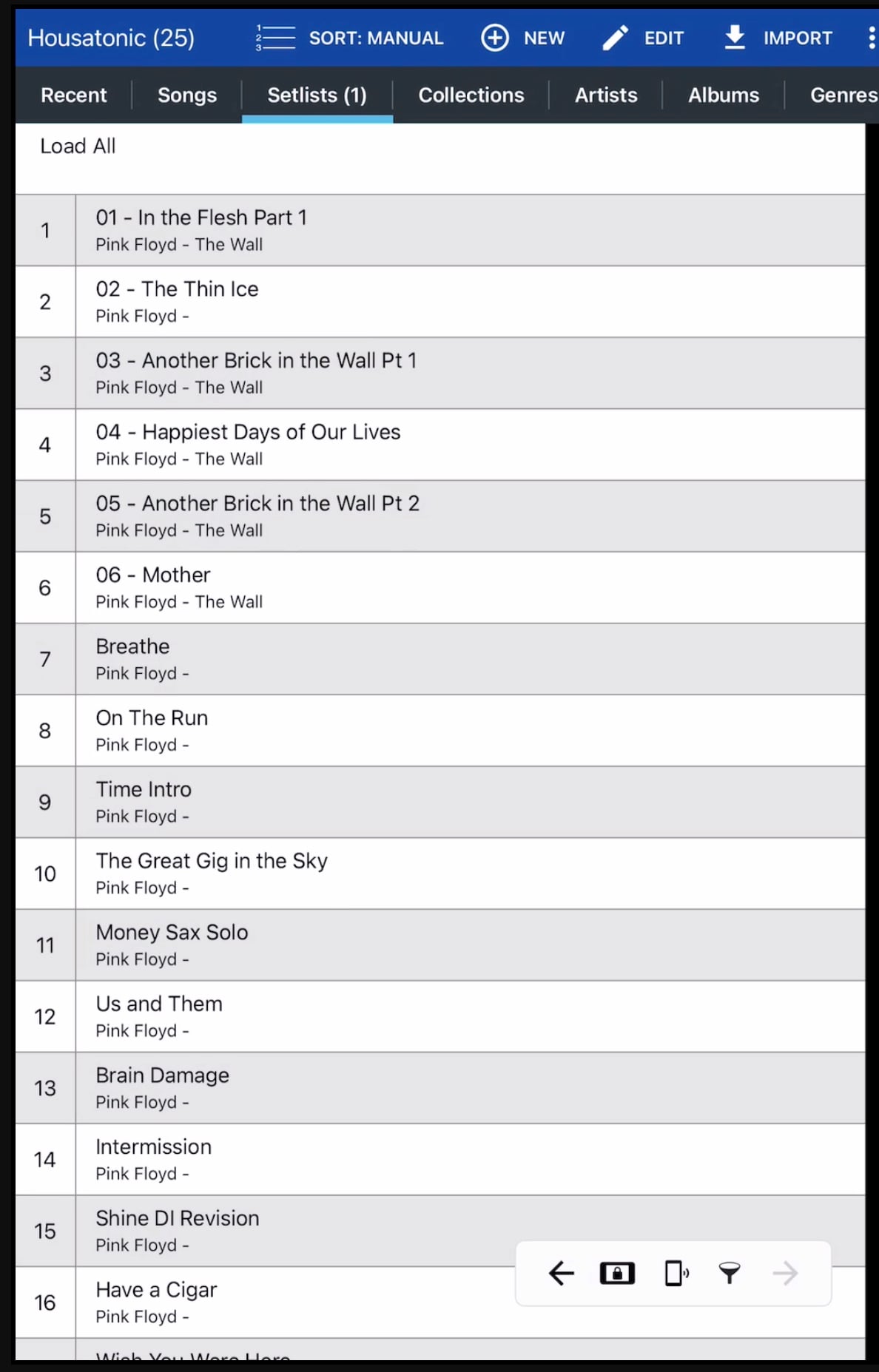
Here is the corresponding setlist in Gig Performer.
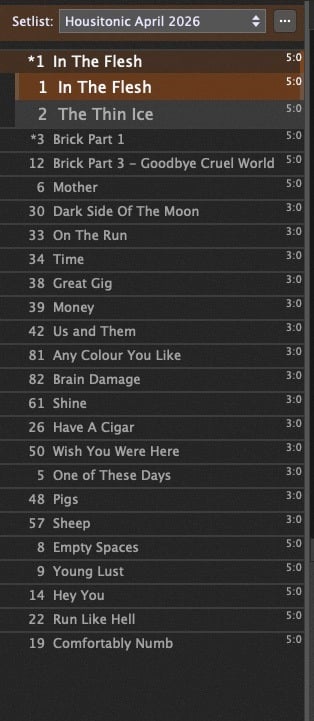
You will notice that MIDI Program changes are displayed on the left of each song name and bank select values are displayed in a smaller size on the far right of each song name.
.
MobileSheets and Gig Performer communication
.
Let’s now select a song in MobileSheets. I’m choosing the song The Thin Ice. In this example, I do this by tapping the song name with my finger on my iPad. As you can see, the underlying score also has annotations to remind me of how the song is configured in Gig Performer.
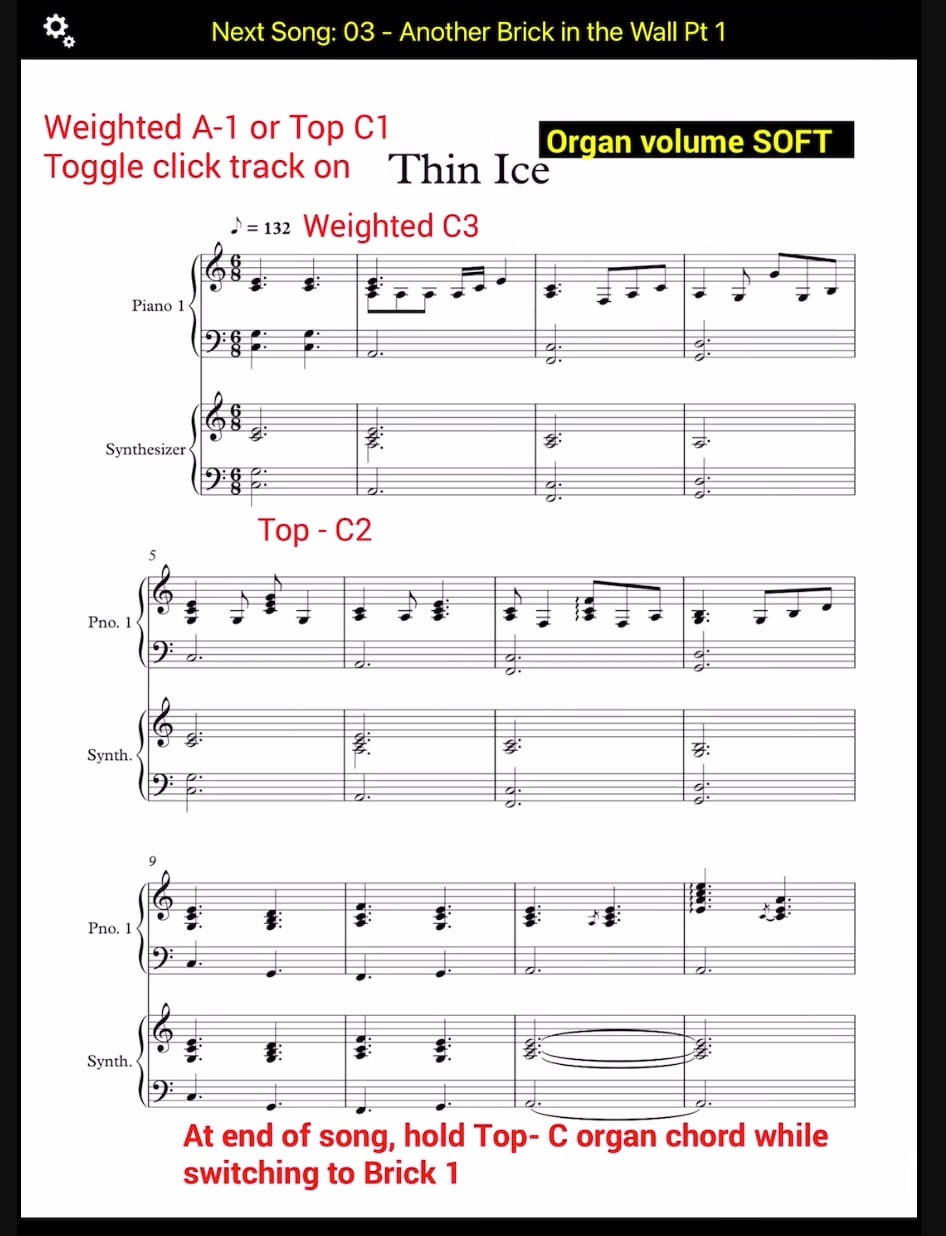
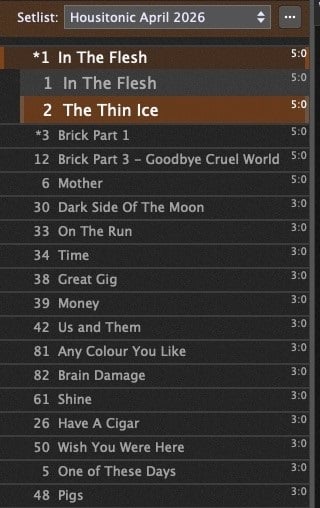
Immediately after we select that song, Mobile Sheets sends MIDI messages to Gig Performer which then responds by switching to The Thin Ice.
An aside – how exactly did that happen?
.
How Gig Performer switches songs upon receipt of MIDI messages from the sheet music application
.
Notice the program change number (left) and MIDI bank select messages (right) displayed for that song.
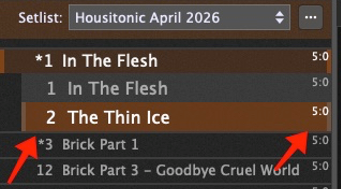
So the program change number is 2 and the bank select values are 5 and 0.
Let’s see how that song is configured for MIDI in Mobile Sheets.
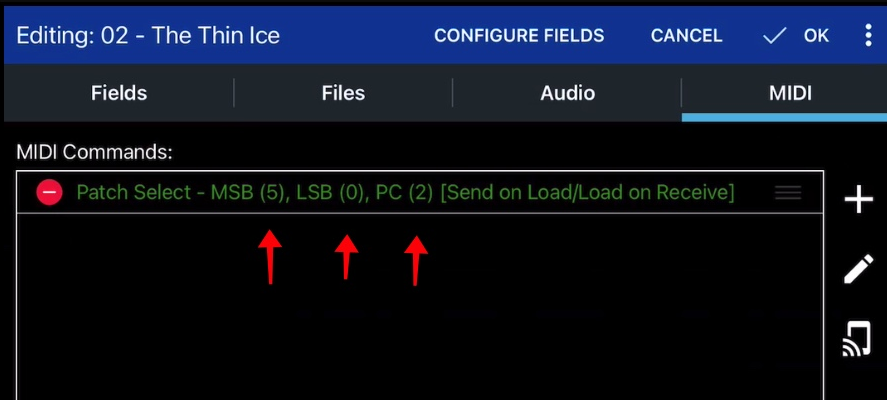
If we go edit the MIDI settings for that song, we can see that there is a single command called a Patch Select. That command accepts three values, the first two represent the MIDI bank select message (often optional, depending on whether you need multiple banks) and the third is the program change message. Hence, three individual MIDI messages are sent out. Note that those three values match the values associated with “The Thin Ice” song in the Gig Performer setlist. Note that if bank select messages are required, they must be sent before the program change message.
That explains how Gig Performer switches songs upon receipt of MIDI messages from the sheet music application. But how do we now switch to the desired patch on your external synth?
.
How to switch to the desired patch on an external synth
.
While there are several ways to do this, the easiest method is the new Actions system that was introduced in Gig Performer 5.
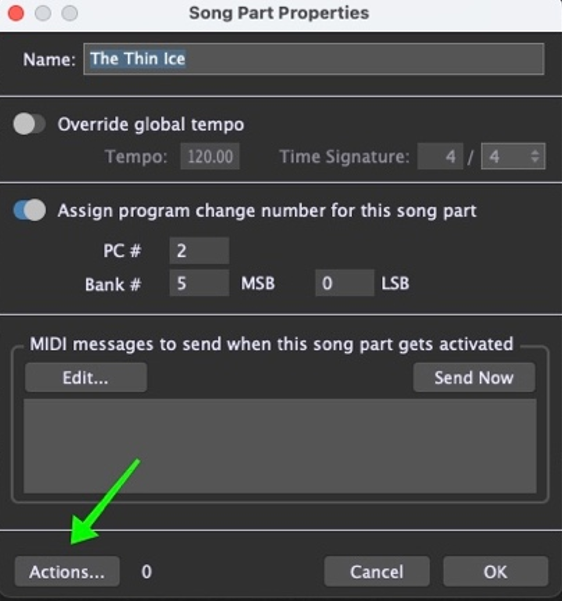
To get to the actions for a song part, just click the Actions button in a Song Part Properties dialog window to open the Actions dialog editor for that specific song part.
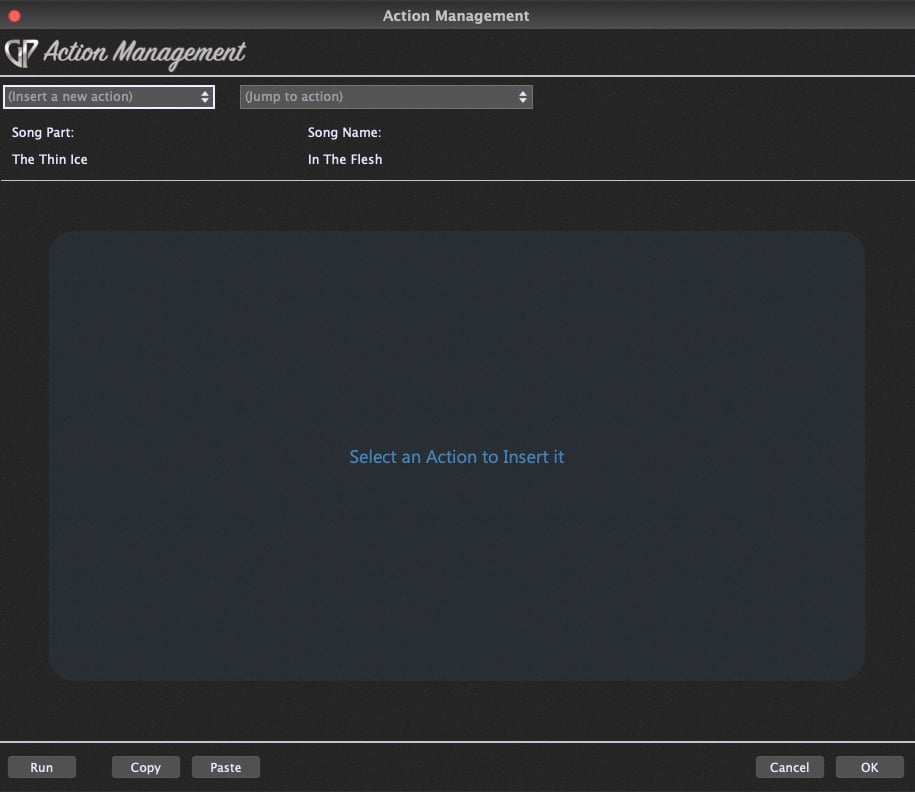
Actions are essentially commands that are triggered automatically when you switch from one song part to another. You can add as many actions as you need for your specific purpose. To insert an action, just click on the drop-down box and select the desired action.
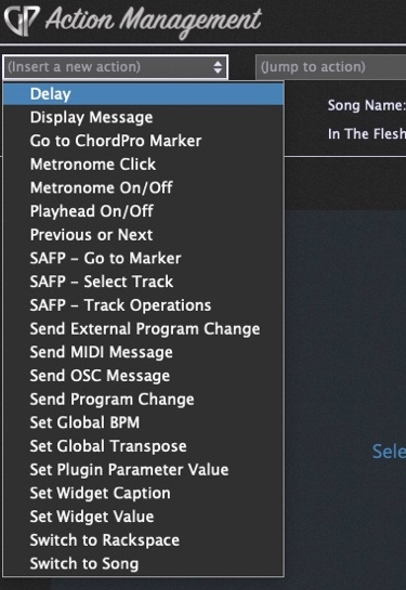
To send optional bank change messages followed by a program change messages to an external instrument, we will select the Send External Program Change action which will insert that action into the action editor where you can now configure the actual MIDI messages values.
.
Example
.
Suppose you want to switch your external synth to use patch 76 and we don’t need to precede it with bank select messages. (If you need bank select messages, send them before the program change message)
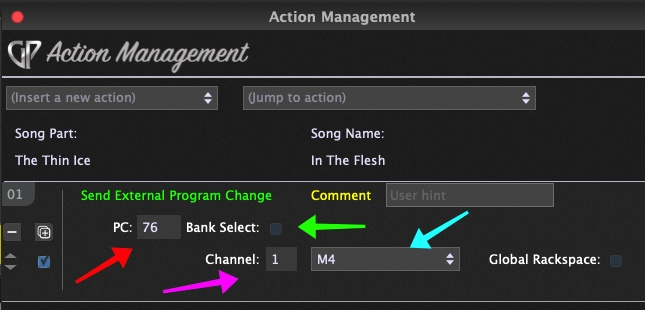
- Set the PC value to 76 (Red arrow)
- Uncheck the Bank Select option (Green arrow)
- Set the MIDI channel number that your external synth requires (Purple arrow)
- Select your external device (Cyan arrow)
(NB – since I don’t have a hardware synth connected directly to my laptop, I selected the M4 which is a MIDI output connection on a MOTU M4 audio interface.)
Click the OK button to close the Action dialog and then close the Song Properties dialog as well.
Now, whenever you select that Song Part, Gig Performer will automatically send out the appropriate MIDI message. See Gig Performer’s Global MIDI Monitor below.
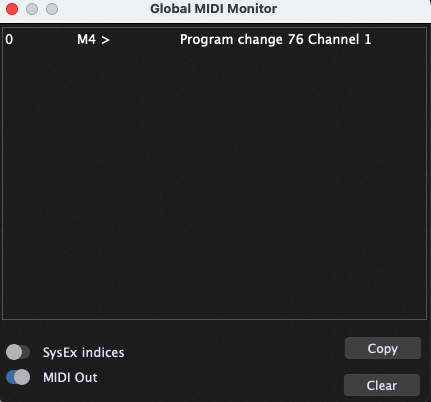
Suppose you have more than one external piece of gear. In that case, you can add more “Send External Program Change” actions to the action sequence, each with its own program change and bank select setting. As the result, all your gear switches to the required patch when you switch song parts.
If you have any questions or want to share your feedback, please check this Community thread.
Please share this article to help spread the word! 🙂
Own the Stage® with Gig Performer®
.
Related topics:
– How to set up MobileSheets on a PC with Gig Performer
– Ways to send program changes to external synths
– How to send Program Change messages out to hardware devices and other applications
– Program Change Management